Step 1
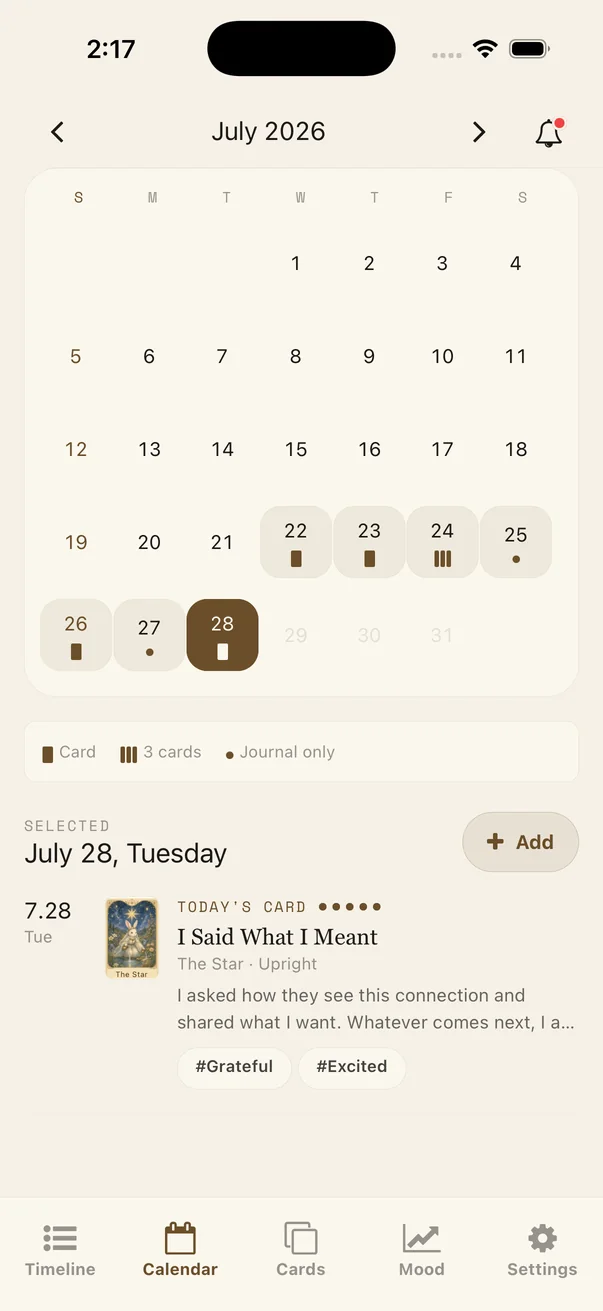
Find the date in Calendar
Open the Calendar tab and choose the date you want to revisit.
Guide
Use the actual app paths to revisit records, get a Question Reading, or save Today’s card.
Find a date in Calendar, open the entry, and compare your card and mood patterns.
Open the Calendar tab and choose the date you want to revisit.
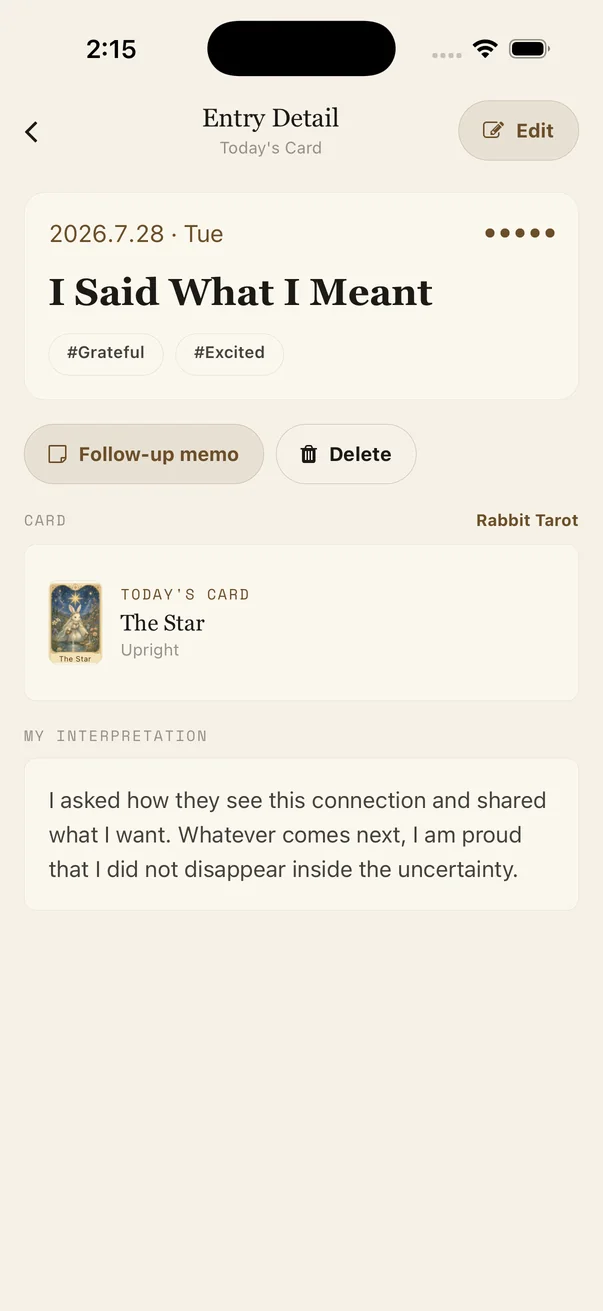
Open the selected entry to review its cards, question, notes, and saved result sheet.
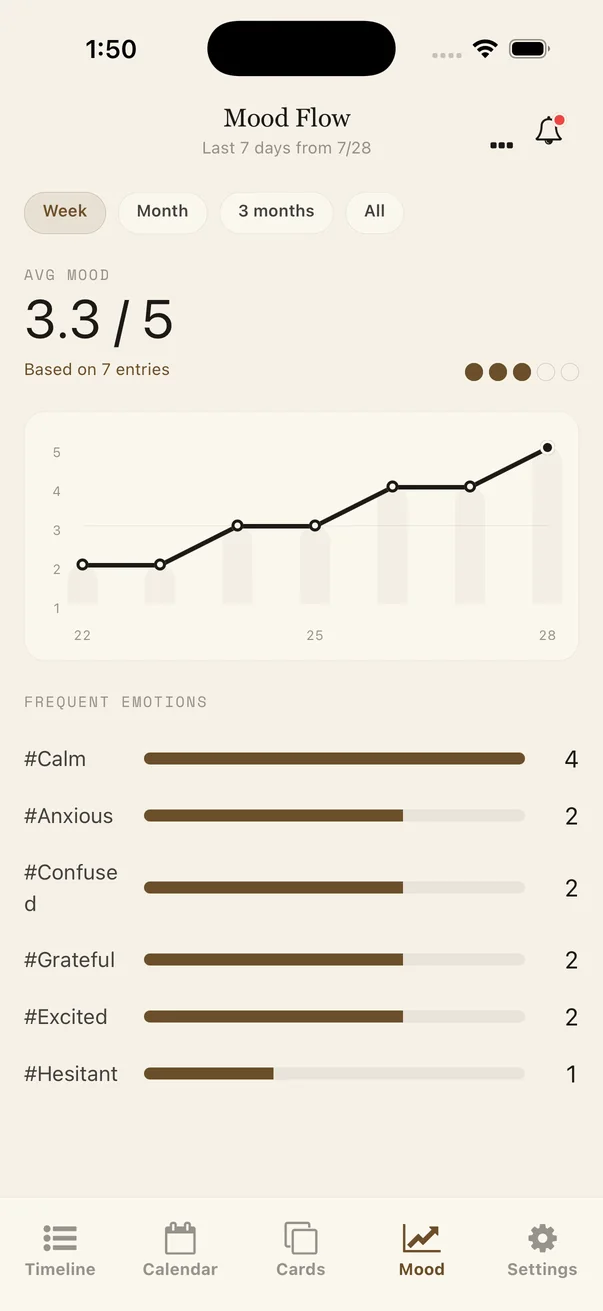
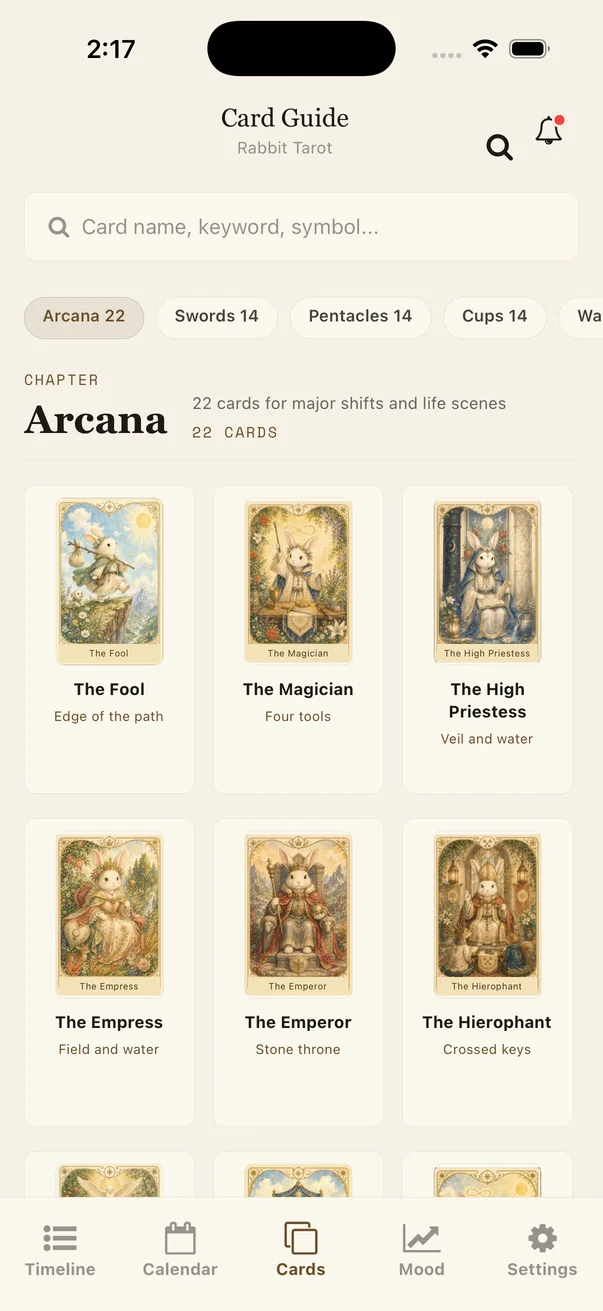
Open Card Guide from Cards and Mood Flow from Mood to see recurring cards and feelings.
Write a question, choose cards, and confirm the displayed card count and Stars cost.
Open Question Reading and describe the question you want to explore.
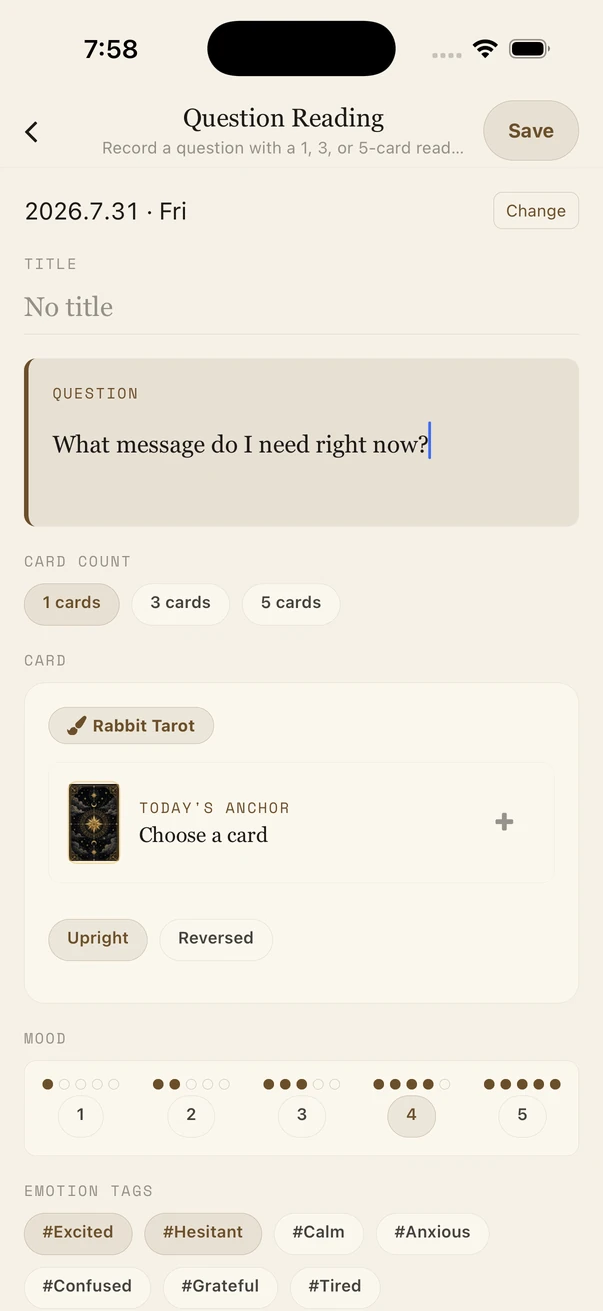
Choose the card count, then select the cards that draw your attention.
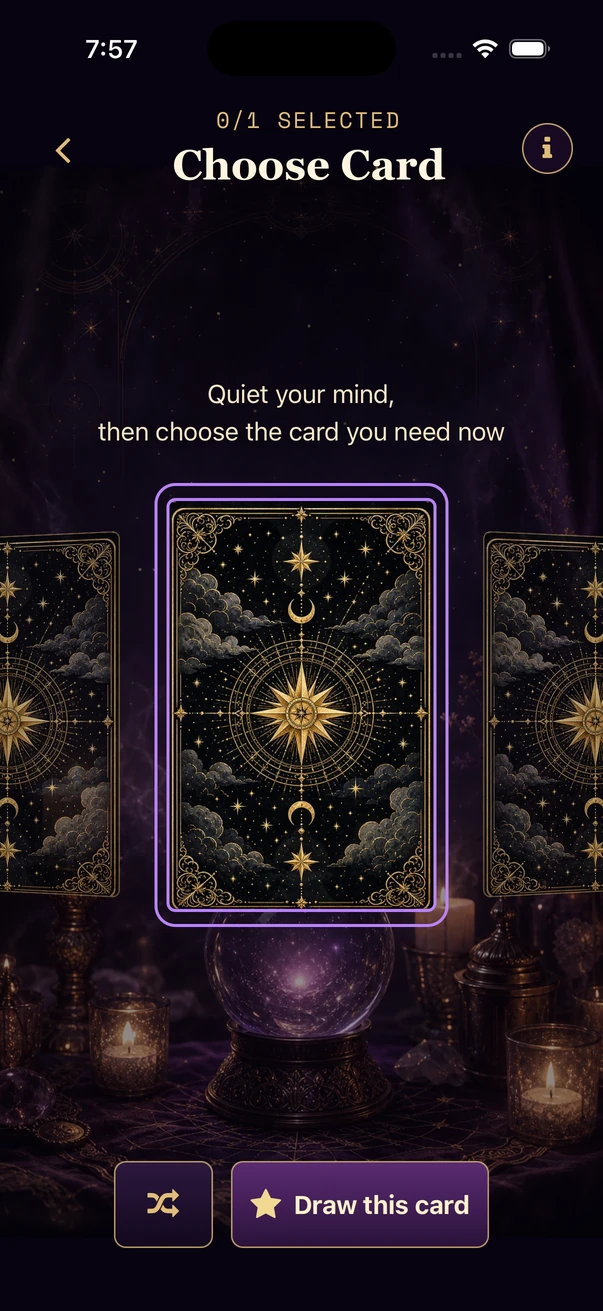
When the reading is ready, review the question, selected card, and interpretation; saved readings remain available from your journal.

Choose Today’s card without signing in, read its message, and continue into New Entry.
Use Draw today’s card on Timeline to move into the card selection screen.
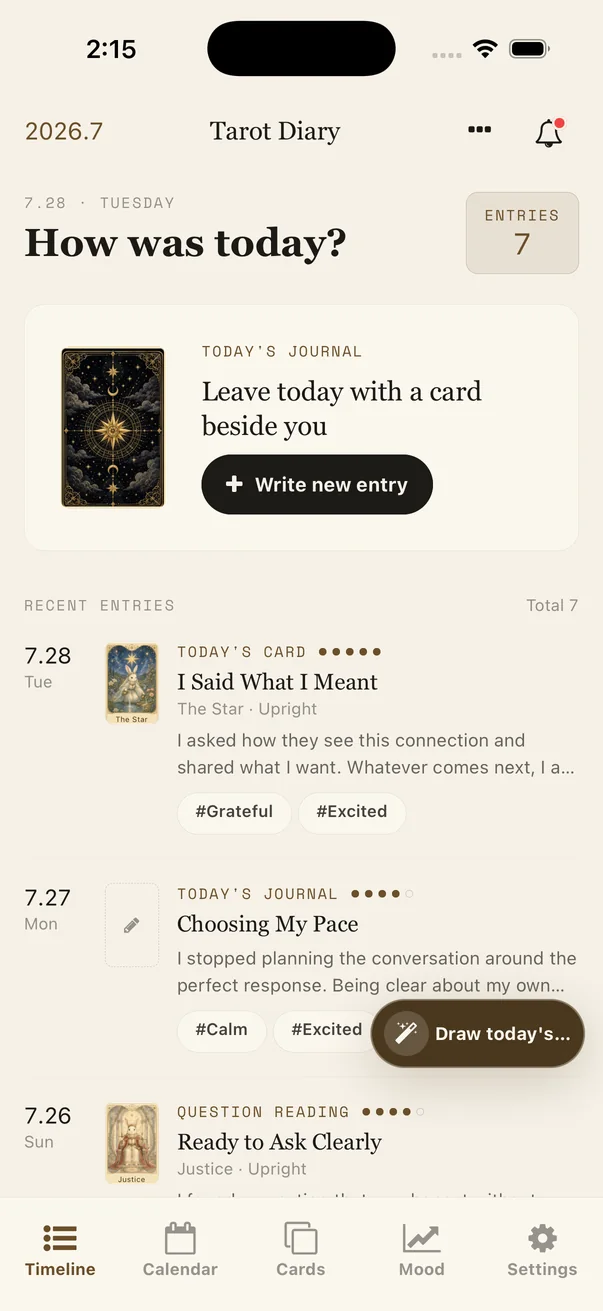
Choose one of the face-down cards to reveal today’s card.
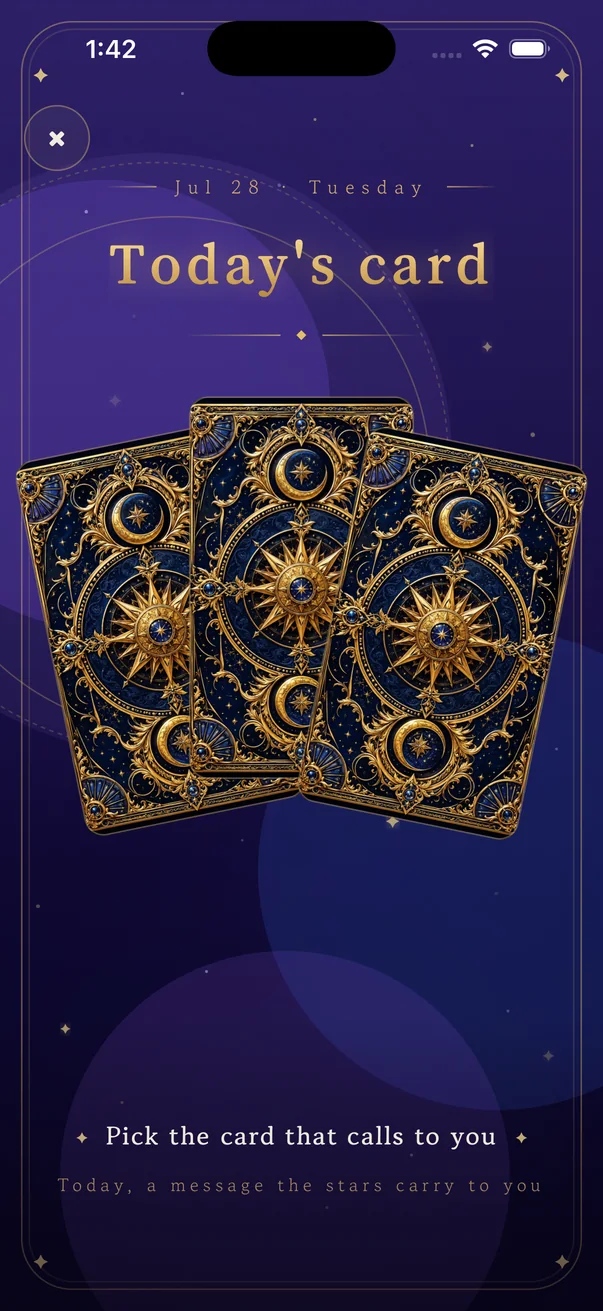
After saving it as an entry, open Entry Detail to review today’s card and what you wrote.